
Troubleshooting Keyboard and Mouse cannot control target computer Issues
Occasionally, users may experience situations where the keyboard and mouse functions of the Openterface device do not work as expected. This document outlines the most common causes and how to resolve or prevent them.
Software feedback: When Openterface cannot establish HID communication because of a missing or wrong Target connection, the UI highlights the status so you can act quickly.
-
On macOS, the keyboard and mouse icon in the top‑right corner of the Openterface utility turns orange.

-
On Windows/Linux, the corresponding icon at the bottom of the window turns red.

Video still appears in Openterface but keyboard and mouse are unresponsive — you can see the target desktop but not control it. This usually means HID communication isn’t established (e.g., wrong Target cable, unpowered hub, or faulty HID chip); check the checklist and sections below. The software also blocks further keyboard/mouse connections until the wiring/issue is resolved.
1. Incorrect Cable Connection
Issue:
Surprisingly common: users forget to connect the Openterface Target Type‑C port to the target computer.
Solution:
✅ Always verify:
- The Target Type-C cable is securely connected from the Openterface Target port to the target computer you wish to control.
- The Host USB-A/USB-C cable is connected to your host/controller computer (where OpenterfaceQt or the control software runs).
Tip: Label cables to avoid confusion in complex setups. - Connect the black cable to the black side of the Target connector. - Connect the orange cable to the orange‑covered side of the Target connector.
2. Use of Unpowered USB Hubs
Issue:
Connecting Openterface through an unpowered USB hub can lead to insufficient power delivery (VBUS voltage drop). This may cause the device to behave erratically or fail to initialize HID (keyboard/mouse) functions.
Solution:
✅ Avoid unpowered USB hubs between Openterface and the target computer.
✅ If a hub is necessary, use a high-quality, externally powered USB hub that can deliver stable 5V power.
Note: USB power delivery is critical for the HID chip to function reliably. Voltage dips can trigger internal faults.
3. HID Chip Entering "Zombie State"
Issue:
Under certain conditions—such as rapid command bursts combined with marginal power—the internal HID chip (e.g., CH9329) may enter a "zombie state." In this state:
- The HID chip locks up and stops serial response data to the host computer.
- It retains an internal error state that prevents normal reinitialization by the host software.
- The device may appear connected (video present) while inputs remain unresponsive.
- The host software (e.g., OpenterfaceQt) cannot reinitialize the device properly.
- Replugging all cables or power-cycling the USB connection typically will not clear this internal error; a factory reset of the HID chip is required.
Solution:
Perform a factory reset of the HID chip:
-
In macOS: Use the Serial Reset Tool available in the Advanced Menu of the macOS utility.
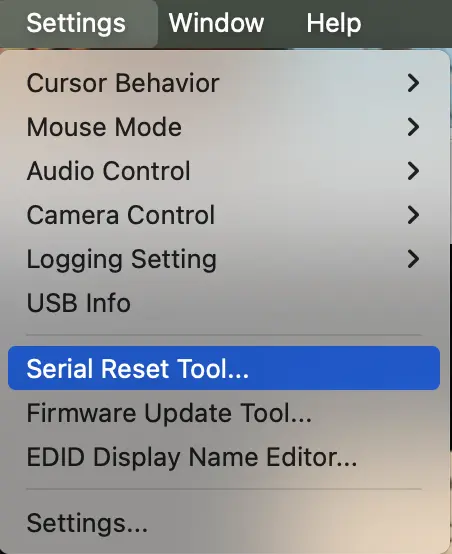
-
In OpenterfaceQt (desktop app): Go to Advanced Menu → Factory Reset HID Chip.

This clears the chip’s internal state and restores normal operation.
4. Baud Rate Sensitivity in Noisy Environments
Issue:
Openterface defaults to 115200 bps baud rate for faster mouse data transmission. However, in electrically noisy environments (e.g. switching power supplies, or long/unshielded cables), this high baud rate can lead to serial communication errors, causing dropped or corrupted HID commands.
Solution:
Switch to 9600 bps baud rate:
- This significantly improves communication reliability in noisy setups.
- The impact on latency is negligible under typical usage (e.g., 30 FPS video capture and control).
Recommendation: If you experience intermittent input glitches without power or connection issues, try lowering the baud rate in the Openterface configuration.
Summary Checklist
If keyboard/mouse isn’t working:
- ✅ Confirm correct Target Type-C cable is connected to the target computer.
- ✅ Avoid unpowered USB hubs—use direct connection or a powered hub.
- ✅ If the device seems "frozen," reset the HID chip via software.
- ✅ In unstable environments, reduce baud rate to 9600 for more robust communication.
- ✅ If the above trials don't help, try a different USB port on the host or restart the host computer — the OS may disable a port or the hub after receiving too many USB error packets. Switching ports or rebooting the host often restores the connection.
By addressing these four areas, most intermittent HID issues can be prevented or quickly resolved. For persistent problems, please contact support(support@openterface.com) with your setup details and logs.