
How to Connect | Setup Guide | Openterface KeyMod Series
Overview
KeyMod connects your phone (running the KeyMod app) to a target device. Your phone acts as the keyboard and trackpad; KeyMod emulates HID input to the target.
Connection flow: Phone (KeyMod app) → KeyMod (USB or Bluetooth) → Target device
- Phone/Tablet: Requires the KeyMod controller app (Android or iPadOS)
- KeyMod: Connects to phone via USB or Bluetooth; connects to target via USB
- Target Device: No software installation required
What You Need
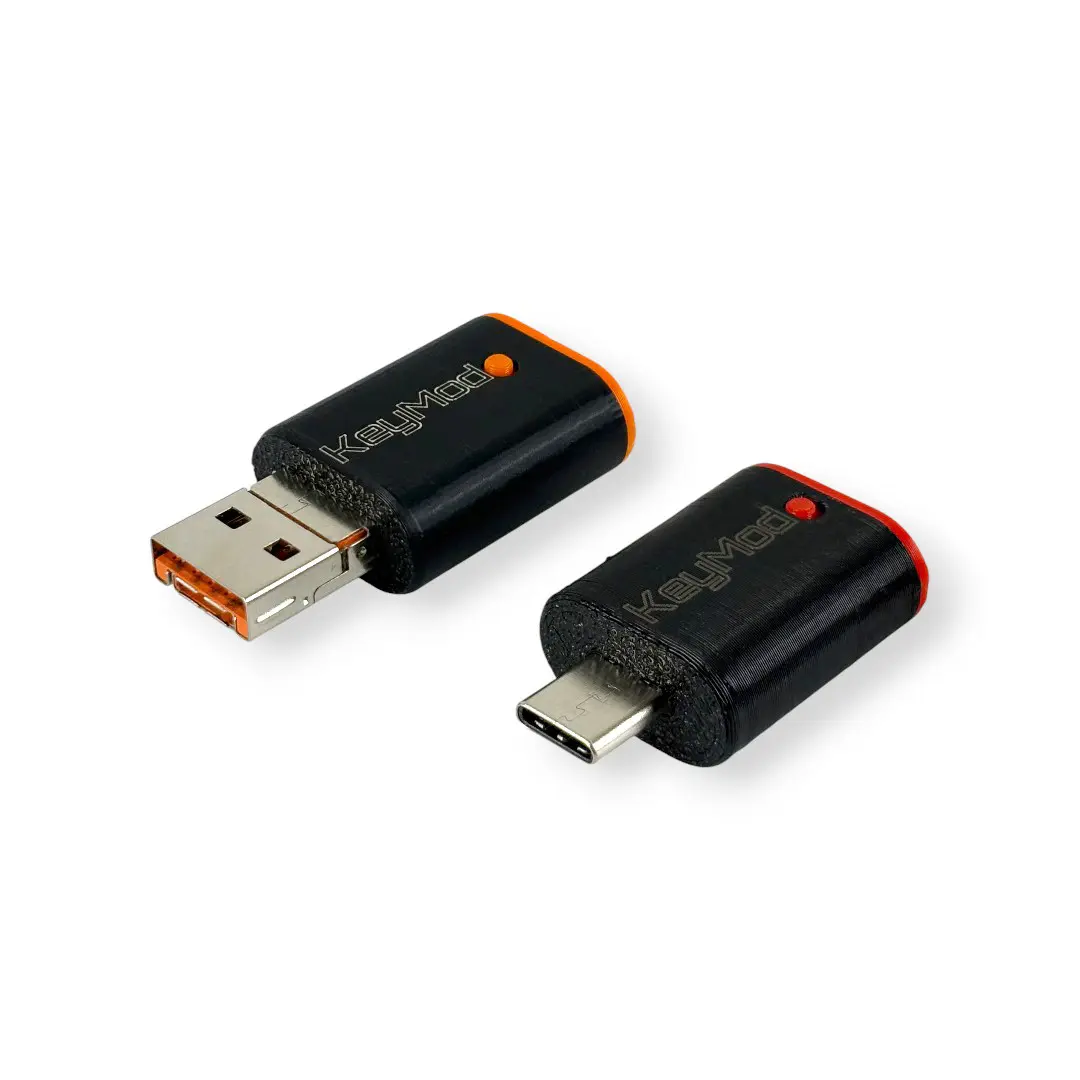
- KeyMod — USB + Bluetooth HID emulator
- Phone or tablet — Android or iPadOS with KeyMod app installed
- USB cable — For KeyMod-to-target connection (included with KeyMod)
- Optional: Bluetooth for cable-free phone-to-KeyMod connection
Step-by-Step Setup
Step 1 — Install the KeyMod App
Download and install the KeyMod controller app on your Android device or iPad from the App section.
Step 2 — Connect KeyMod to Your Phone
Option A: USB Connection
Connect KeyMod to your phone via USB cable. The 2-in-1 variant fits both USB-A and USB-C ports; the USB C variant uses a USB-C cable.
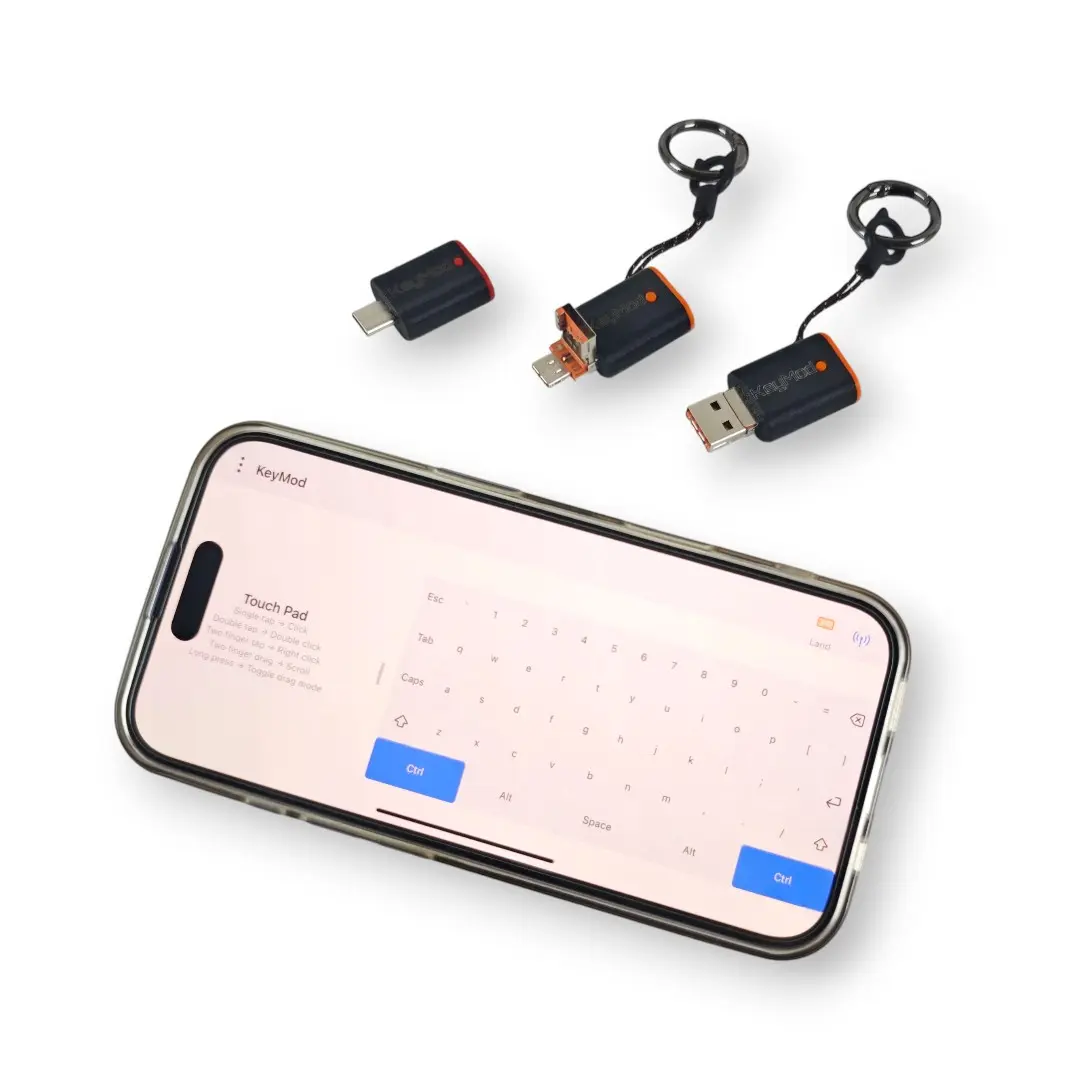
Option B: Bluetooth Connection
Pair KeyMod with your phone via Bluetooth for a cable-free setup. Enable Bluetooth on your phone, then pair with KeyMod from the app.
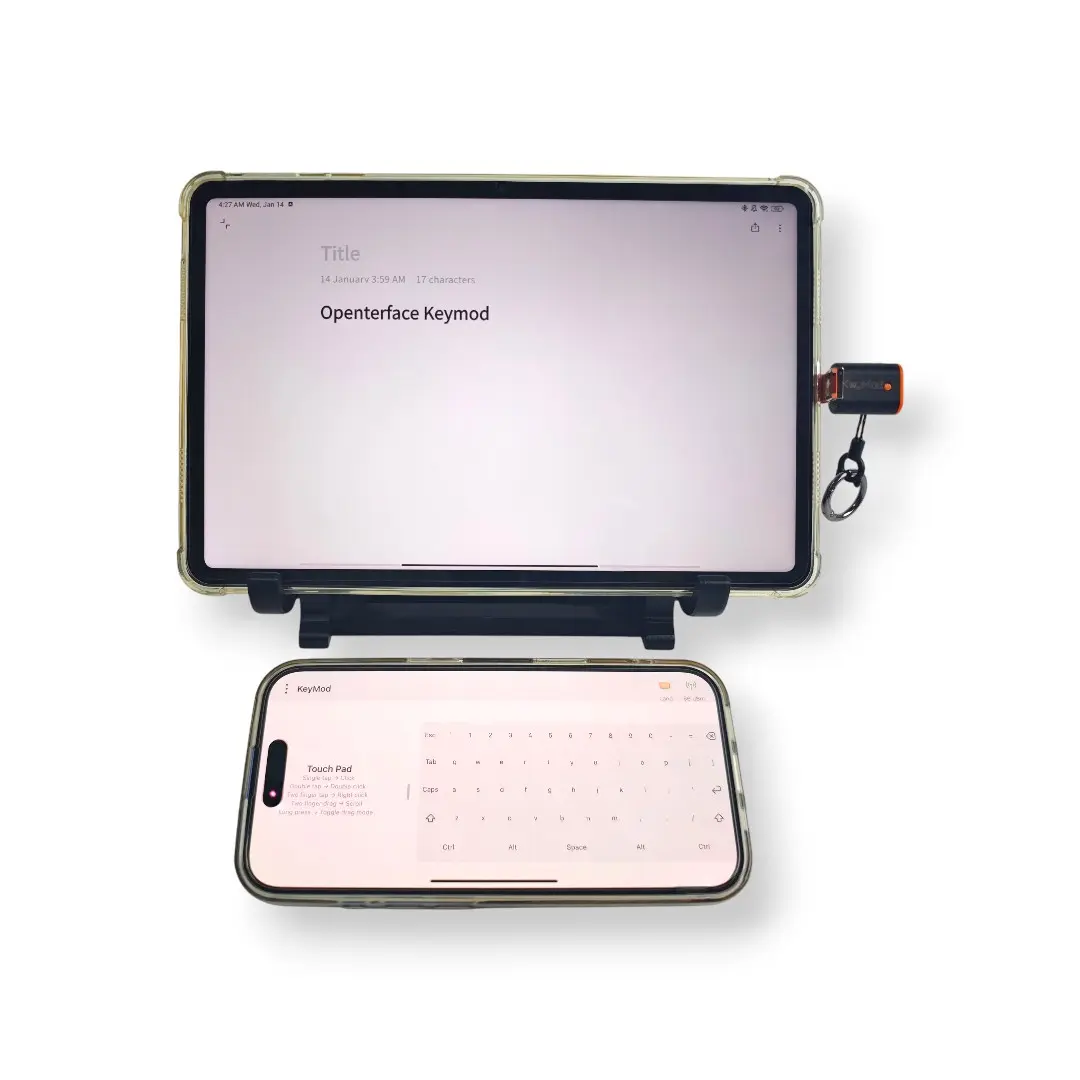
Step 3 — Connect KeyMod to Target Device
Plug KeyMod's USB connector into the target device (computer, kiosk, smart TV, set top box, etc.). The target will recognize KeyMod as a standard USB keyboard and mouse—no drivers or software needed.
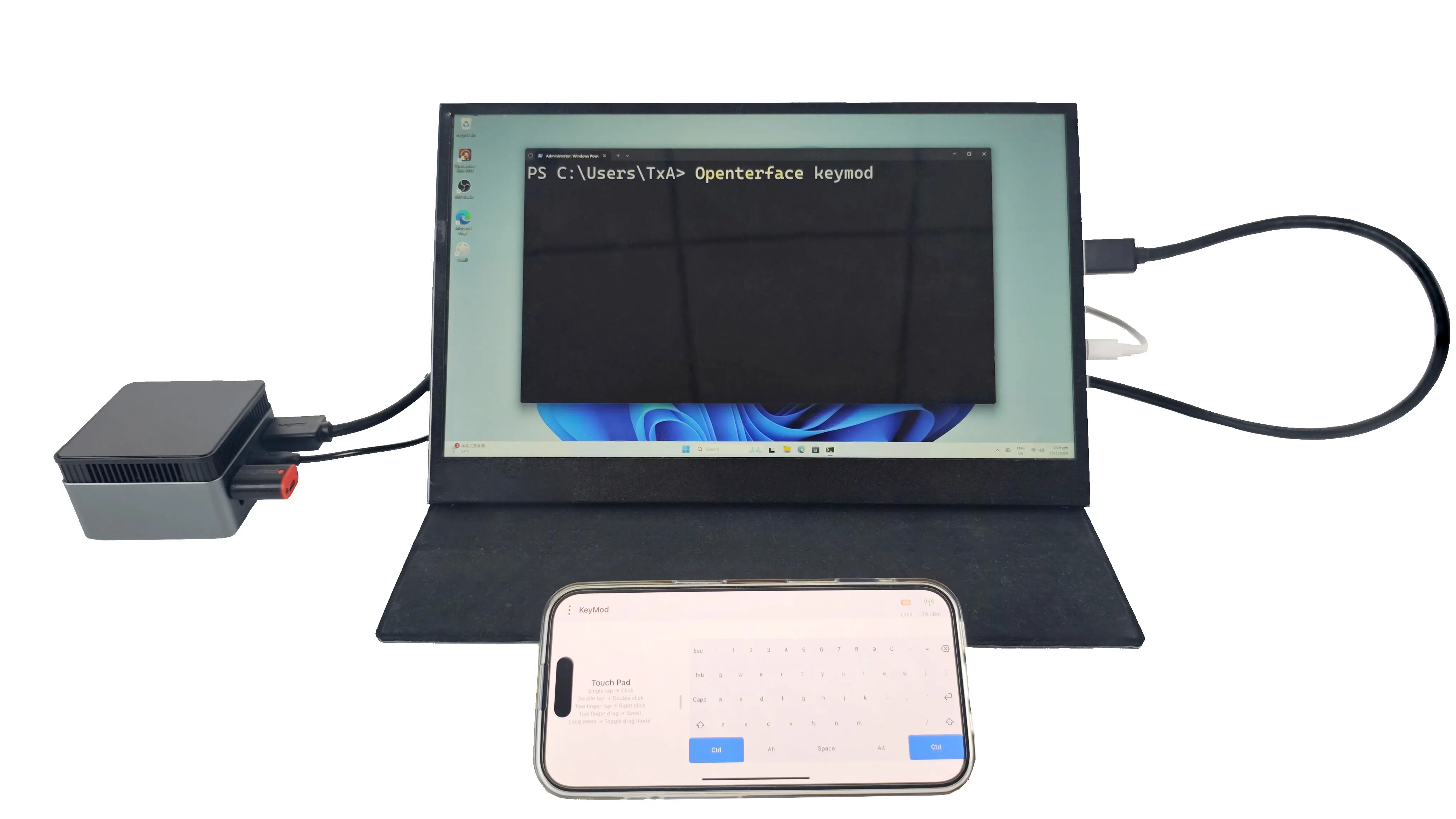
Step 4 — Start Controlling
Open the KeyMod app on your phone. Use the on-screen keyboard and trackpad to control the target device. Configure profiles, macros, and hotkeys as needed.