
Software
To get your Openterface™ KVM gadgets up and running, you'll need to install one of the apps listed below on your host computer. You can grab these apps from different app platforms or just click the links provided. If you're feeling adventurous, you can also build them from source using our GitHub repositories!
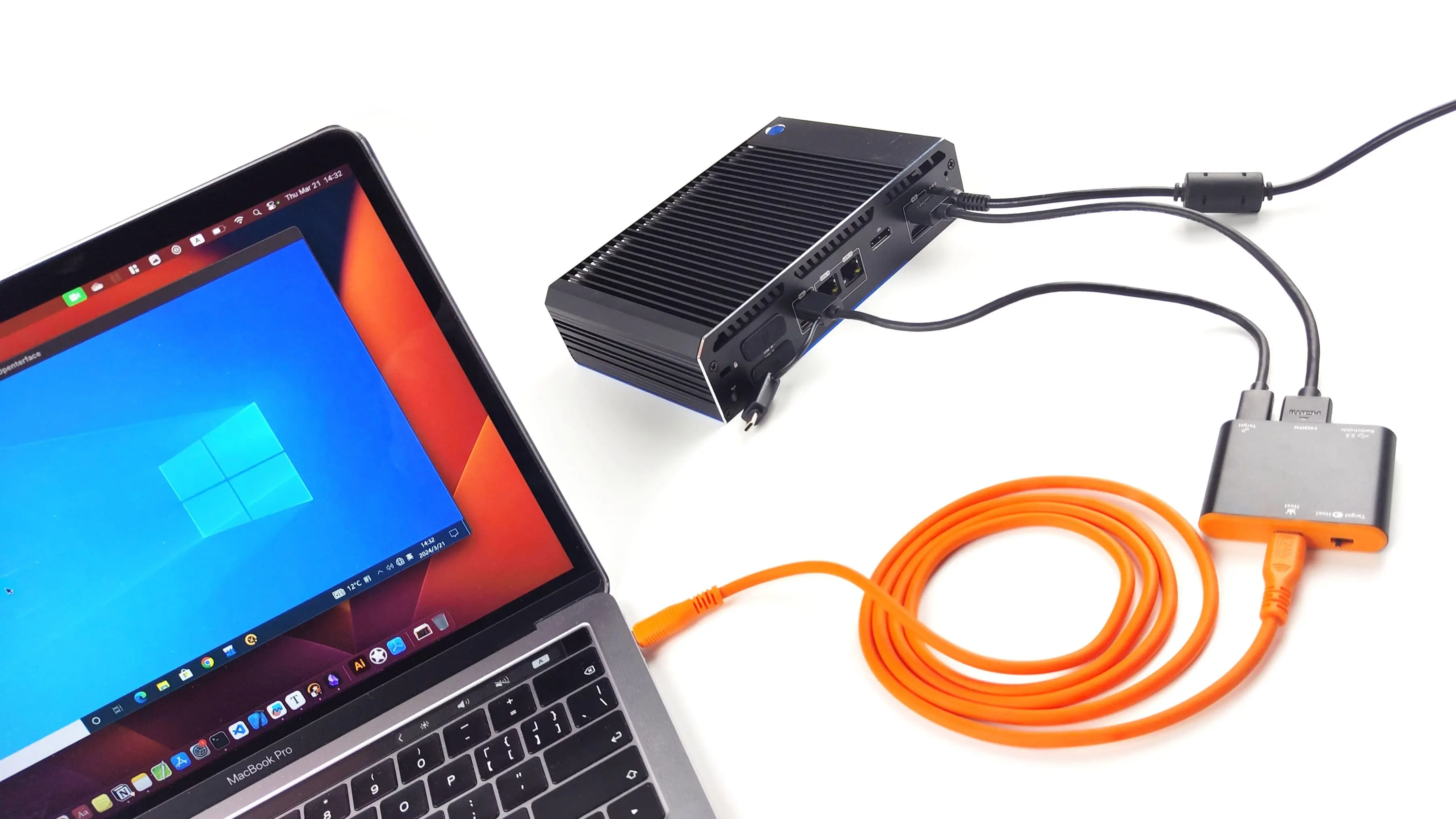
Download & Installation
-
Windows
Download or build from source for Openterface QT Win:
Download 0.5.19 Installer
Download 0.5.19 Portable EXE
Openterface_QT
Watch Demo -
macOS
Download or build from source for Openterface MacOS:
Install from App Store
Download portable DMG
Openterface_MacOS
Watch Demo -
Linux
Download or build from source for Openterface QT Linux:
Download 0.5.19 AMD64 DEB
Download 0.5.19 AMD64 RPM
Download 0.5.19 AMD64 AppImage
Download 0.5.19 ARM64 DEB
Download 0.5.19 ARM64 AppImage
Openterface_QT
Watch Demo -
Android
Download or build from source for Android APK:
Download from Google Play Store
Download v1.2.2
Openterface_Android
Watch Demo
Heads Up: Check Privacy & Security with Third-Party Apps
Since all our apps are open source, you might come across alternative versions of host applications for Openterface devices created by others. They can be quite cool and may offer extra features, but here’s a friendly reminder: review their security and privacy practices carefully—especially because KVM control involves events from your screen, keyboard, and mouse. The Openterface Team cannot vouch for the safety of these third-party apps, so proceed with caution!
Updates
- Feb 03, 2026: Ubuntu Copy/Paste Tip (macOS → Ubuntu)
- Dec 18, 2025: Openterface Mini-KVM Mouse Speed & Gaming Performance on macOS
Basic KVM Controls
💻 Compatibility
- Host Side: Install any official Openterface host application (Windows, macOS, Linux, Android and more).
- Target Side: No software required. Simply connect a device with video output and a USB port for keyboard/mouse control. Works with virtually all systems including Windows, macOS, Linux, Android, iOS, and BIOS/UEFI screens.
🖱 Mouse Control
- Absolute Mode: Mouse position on the host maps directly to the target’s screen.
- Relative Mode: Mouse movements are sent relative to the cursor’s current position. You can exit relative mode with a keyboard shortcut.
⌨️ Keyboard Input
All keystrokes typed on the host are forwarded to the target whenever the host app window is active and in focus.
⚙️ BIOS / Pre-Boot Access
You can control BIOS or other pre-boot environments just like a physical keyboard and monitor.
Common keys include: F2 (Dell/Lenovo/ASUS), F10 (HP), Del (ASUS/Gigabyte/MSI), Option (Apple).
🔊 Audio
If supported by your Openterface device and cable setup, audio sent through the target’s HDMI output will play directly on the host.
🎥 Video Display
If supported by your Openterface device and cable setup, audio embedded in the target’s video signal will be routed to your host computer and played directly in the app. (Devices using video formats without audio, such as VGA, will naturally not provide sound.)
🔄 Switchable Ports (If Your Device Includes Them)
Some models feature ports that can be assigned to either the host or the target, such as USB data ports or storage slots.
- Access is exclusive — only one side can use the port at a time.
-
Switch using:
-
physical hardware controls, or
- software buttons inside the host app (depending on device model).
Important:
- Always eject storage devices before switching.
- Avoid powering high-draw peripherals from switchable ports.
For more details, see the Switchable Ports Guide.
Advanced App Features
Some Openterface host applications offer additional tools on top of basic KVM control. These features are implemented in software on the host side, so availability and behavior can vary between apps and platforms. Please refer to each app’s documentation for exact details.
Common advanced capabilities include:
-
Copy Text from Host to Target: Some apps let you paste text to the target, but the app is simply typing it automatically by sending a stream of emulated keystrokes. This is not real clipboard syncing. Only ASCII characters are supported, long text may lose formatting or characters, and older or busy target systems may drop keystrokes if they cannot keep up. Best used for short text like usernames, passwords, commands, or URLs.
-
OCR & Text Extraction: Select an area of the target screen, let the host app run optical character recognition (OCR), and then copy the recognized text to your host clipboard for editing or search.
-
Screen Capture & Recording: Capture still images or record video of the target screen as displayed in the host app, useful for debugging, documentation, or demos.
-
and more...: Features such as zooming in and out of the target display, viewing USB device information, triggering serial resets, updating firmware, or customizing EDID profiles.
Because these functions depend on the specific host application, their availability, performance, and user experience may differ across operating systems and versions. For the latest information, check the feature list and release notes of the app you are using.