
KVM-Go Firmware Upgrade
Overview
KVM-Go uses the CH32V208 chip from WCH for keyboard and mouse emulation. Currently, firmware flashing requires WCH's official programming tool, which is only available for Windows. Therefore, firmware updates must be performed on a Windows system at this time.
We're actively working on a cross-platform, self-developed firmware upgrade solution that will be integrated directly into the device. Once ready, it will support firmware updates across all major operating systems—without requiring third-party tools.
Note: This manual firmware upgrade procedure is a temporary solution for early development units. For official production products, firmware updates will be seamlessly integrated into our software, allowing you to update firmware directly through the application without requiring any third-party tools or manual procedures.
Prerequisites
Before proceeding, ensure you have:
- A Windows computer
- The WCH ISP Tool installed
- The firmware file (
.hexformat) ready for flashing
Download Firmware
Download the latest KVM-Go firmware file:
- BLE_USB.hex — Latest firmware for KVM-Go keyboard and mouse emulation (CH32V208 chip)
Save the firmware file to an easily accessible location on your Windows computer before proceeding with the upgrade process.
Download WCH ISP Tool
Download and install the WCHISPTool (Windows only).
Thank you for your patience and support!
Step-by-Step Instructions
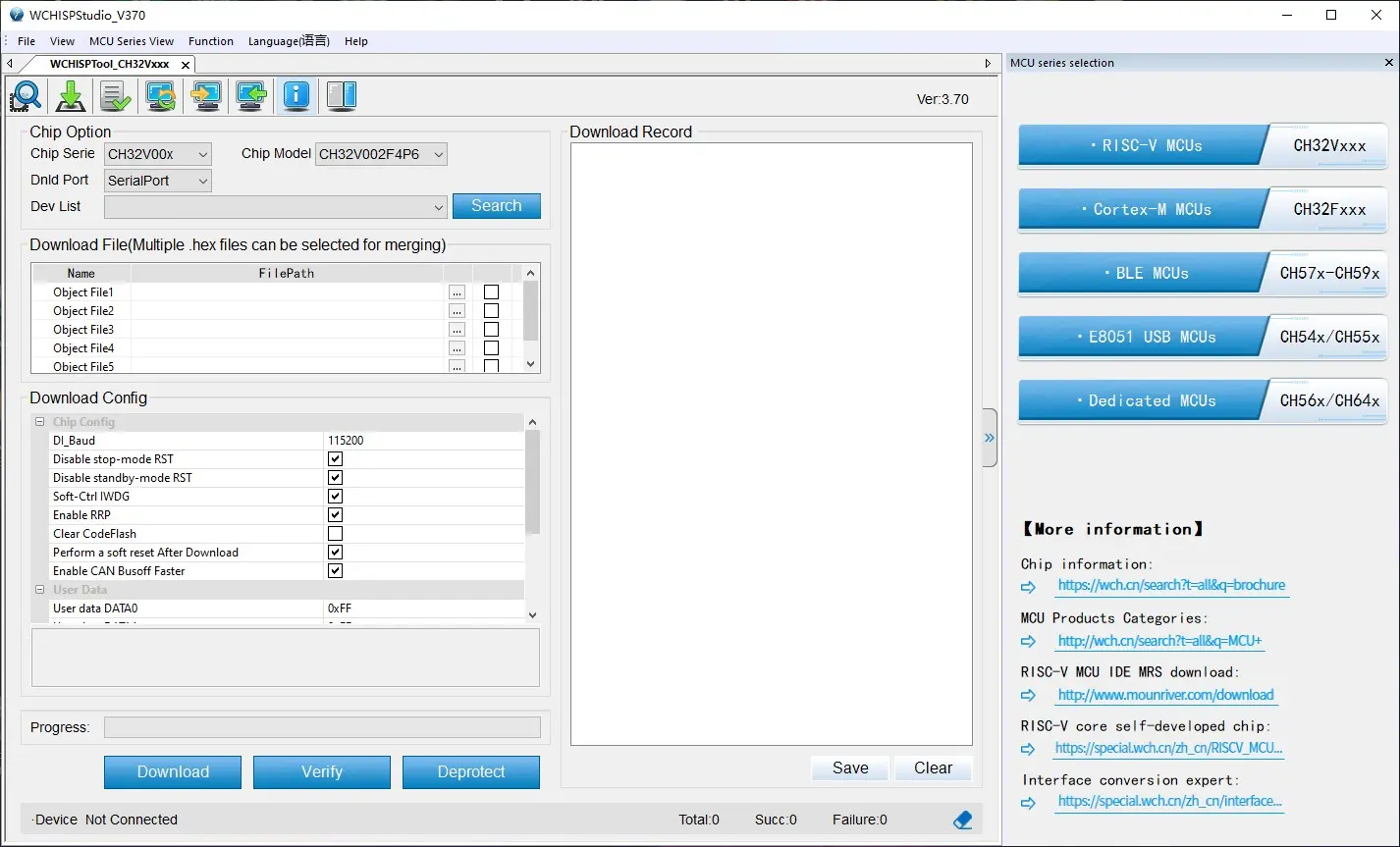
Step 1: Download and Open the Tool in Windows
Launch the WCH ISP Tool on your Windows computer.
Step 2: Prepare the KVM-Go for Flashing
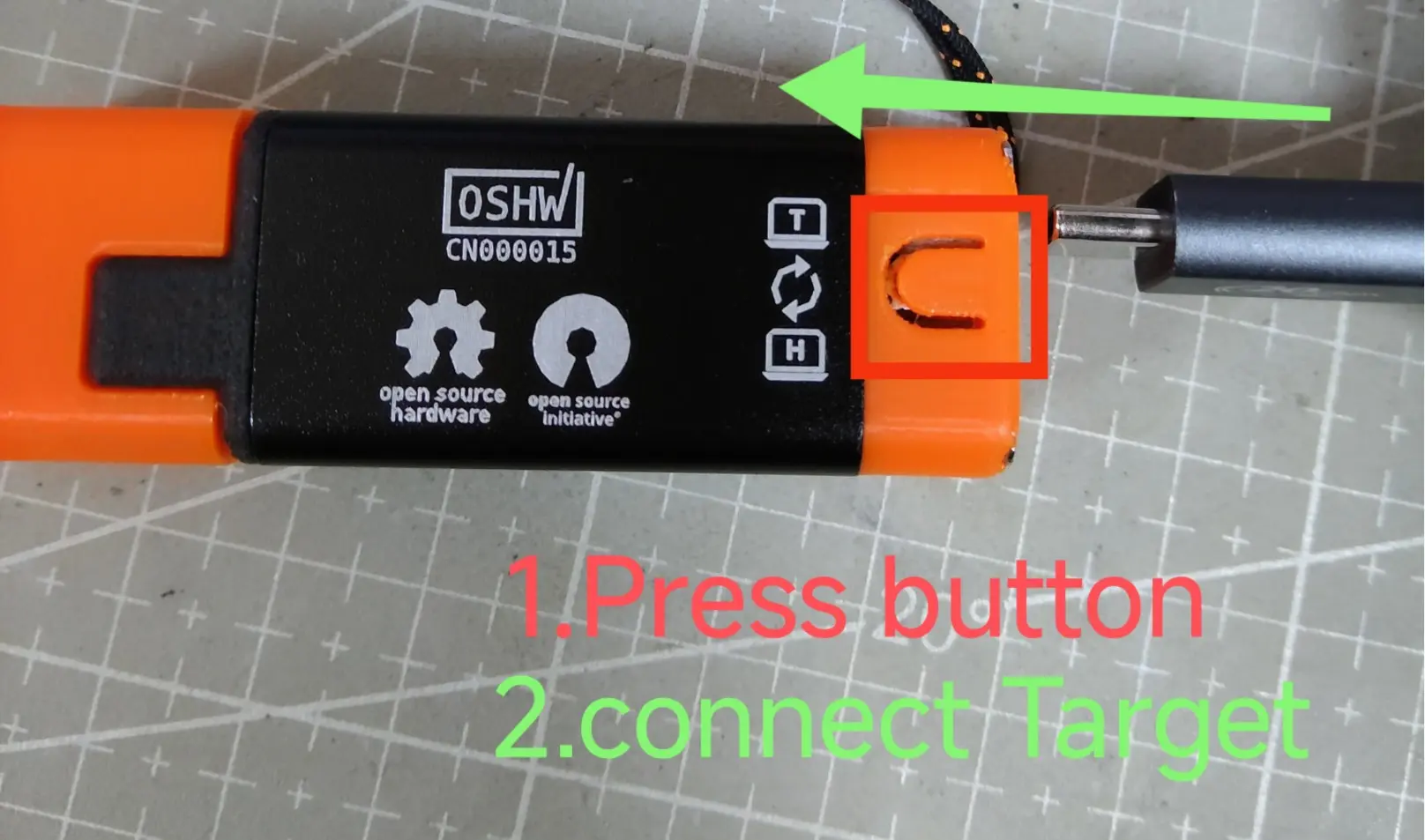
To flash firmware on the KVM-Go:
- Ensure the device is powered off
- Press and hold the button while connecting it to a USB Type-C port
Tip: You can flash the firmware using either port, but the "target" port tends to be more stable during flash.
Step 3: Select the Firmware File
If the connection is successful, the tool will automatically detect the chip model (CH32V20X series).
- Click the "..." button to browse and select the firmware file you wish to flash
- Select the
.hexfirmware file - Important: Remember to check the box next to the firmware file



Step 4: Deprotect Current Firmware
Before flashing new firmware, you need to remove write protection from the current firmware:
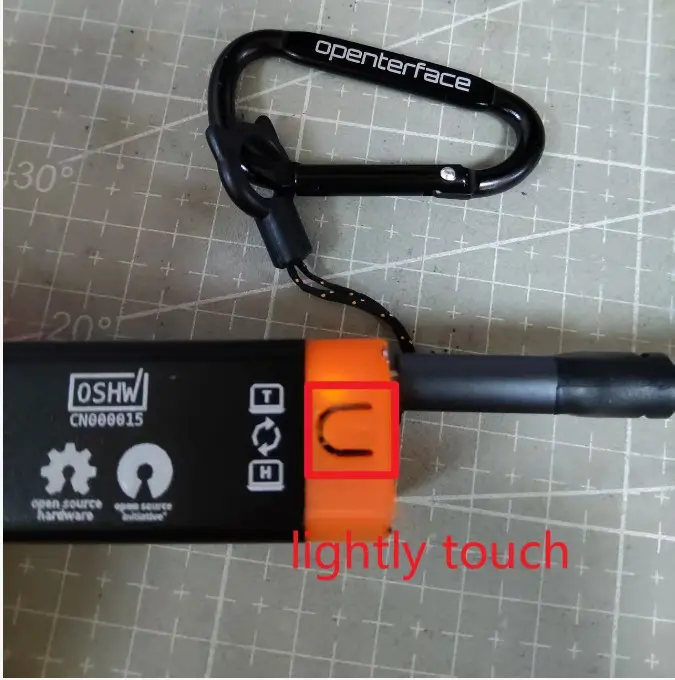
- Click the "Deprotect" option in the tool
- Briefly press the physical button on the KVM-Go to enter flashing mode
- Wait for the deprotection process to complete

Step 5: Download and Flash the Firmware
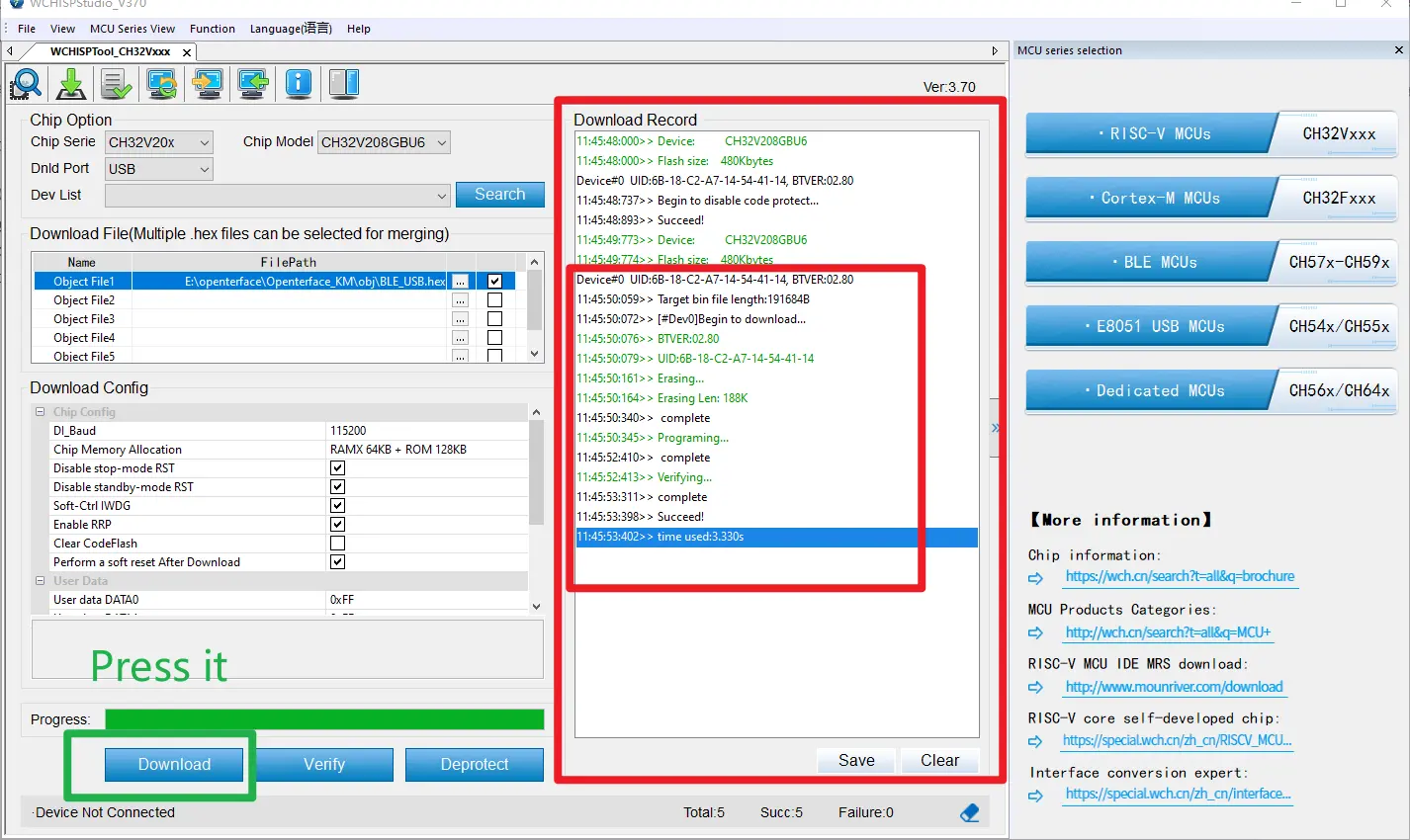
Once the firmware is deprotected and selected:
- Click the "Download" button in the flashing tool
- Wait for the flashing process to complete
- The tool will indicate when the firmware has been successfully flashed
Further Reading
- Openterface KVM-Go Review Guide — Important notes and known issues for engineering prototype units